

Privacy-First Browser Diagnostics
Free Online Device Tests: Microphone, Webcam, Keyboard & Screen Test
DeviceTry checks your microphone, webcam, speakers, keyboard, mouse, screen, and internet connection — free, right in your browser. Nothing is uploaded unless a test says otherwise, and no registration is required.
Something not working?
Start with the guide for your symptom, then run the linked browser test to separate a permission problem from a hardware or settings problem.
- Read the guide
- Run the test
- MicrophoneMicrophone Not Working? A Complete Troubleshooting Guide
- WebcamWebcam Not Working? 14 Fixes for Windows & Mac in 2026
- GamepadController Stick Drift: Diagnose It, Calibrate It, Fix It
- Screen & PixelsHow to Check a Screen for Dead and Stuck Pixels
DeviceTry reports what the browser can actually observe instead of guessing about the physical device.
Most popular testers

Microphone Test
Live input level meter with pitch detection and voice recorder tabs.
Microphone permission required
Popular
Webcam Test
Inspect live camera stream, delivered resolution and frame rate — with a mirror mode.
Camera permission required
Popular
Keyboard Test
Press every key to verify registration, key rollover, and ghosting visually.
Physical keyboard required
Popular
Mouse Test
Verify left, right, and middle buttons, scroll wheel, and tracking accuracy.
Mouse or touchpad required
Popular
Speaker & Headphone Test
Verify stereo separation by playing a 440 Hz tone to the left, right, and centre channels, then confirming what you hear.
Use headphones for channel checks
Popular
Screen Test
Dead-pixel, solid-pattern, and display-information checks in one tool.
Fullscreen recommended
Popular
Gamepad Test
Press every controller button, move both sticks, and run a neutral drift check.
Press any button to connect
Popular
Internet Speed Test
Real download, upload, and latency measurements via the Cloudflare measurement network.
Transfers real data on start
Test every part of your setup
From microphones and webcams to keyboards, screens, and controllers — pick a category, run the check, and get your verdict in seconds. Everything runs right in your browser.
Audio & Video (5)
Microphone Test
Live input level meter with pitch detection and voice recorder tabs.
Microphone permission required
PopularWebcam Test
Inspect live camera stream, delivered resolution and frame rate — with a mirror mode.
Camera permission required
PopularSpeaker & Headphone Test
Verify stereo separation by playing a 440 Hz tone to the left, right, and centre channels, then confirming what you hear.
Use headphones for channel checks

Online Voice Recorder
Record audio locally with pause/resume, playback, and download — nothing uploaded.
Microphone permission required

Tone Generator
Play reference tones at any frequency with sine, square, sawtooth, and triangle waves.
Start low — audible tones
Input & Gaming (6)
Keyboard Test
Press every key to verify registration, key rollover, and ghosting visually.
Physical keyboard required
PopularMouse Test
Verify left, right, and middle buttons, scroll wheel, and tracking accuracy.
Mouse or touchpad required
PopularGamepad Test
Press every controller button, move both sticks, and run a neutral drift check.
Press any button to connect

Touchscreen Test
Touch each coverage tile and test multi-touch — mouse input never counts.
Touch-capable display required

CPS & Spacebar Test
Measure clicks or spacebar presses per second over a bounded 5/10/30-second run.
Timed 5 / 10 / 30 s runs

Reaction Time Test
Measure visual response time over five attempts with a randomized wait.
Five attempts per session
Display & Screen (2)

Network (2)

Supporting Diagnostics (6)
Permission Diagnostics
Read the permission states this browser reports for your site — and see exactly which ones it could not read.

Browser Compatibility
See which web APIs this browser actually exposes, including APIs it ships switched off.

Codec Support
See what this browser reports about recording containers and playback codecs — with "maybe" kept as "maybe".

WebRTC Capability Test
Run a real local peer-to-peer loopback and confirm echoed messages actually came back — no leak testing.

Browser & System Info
A labelled snapshot of what this browser exposes — screen, viewport, pixel ratio, and user-agent estimates.

DeviceTry Storage Inspector
Inventory every localStorage key DeviceTry owns, export it, and clear it with a verified result.
Quick Guided Check
A structured checklist that walks you through several testers in sequence and builds one printable report.
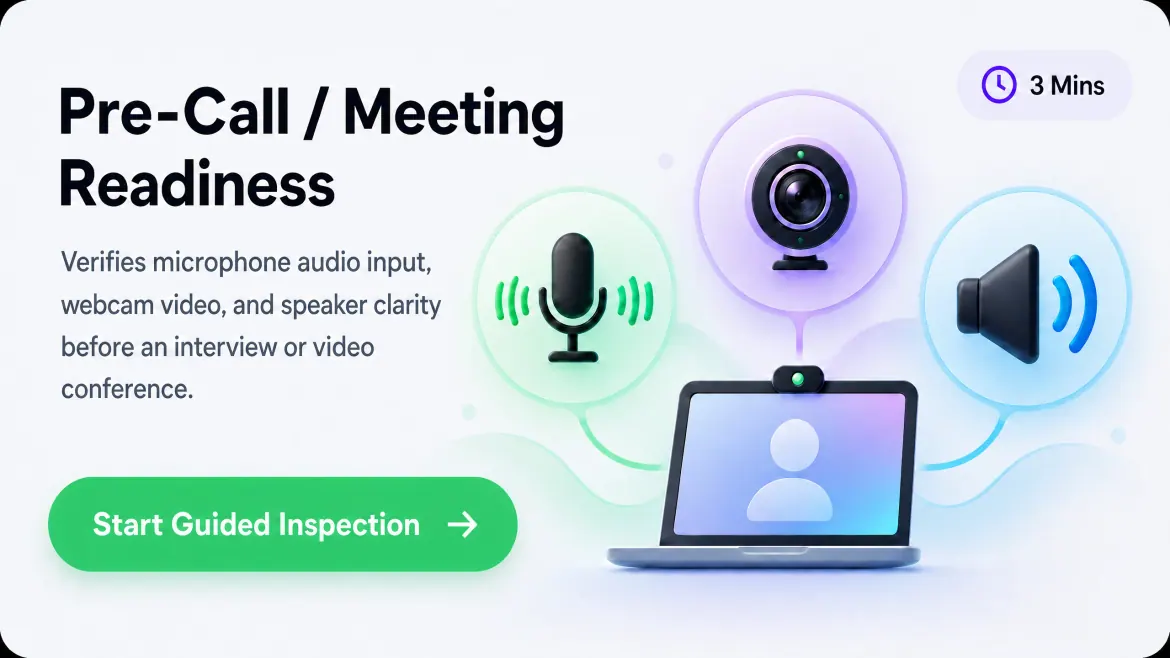
Pre-Call / Meeting Readiness (3 Mins)
Verifies microphone audio input, webcam video, and speaker clarity before an interview or video conference.
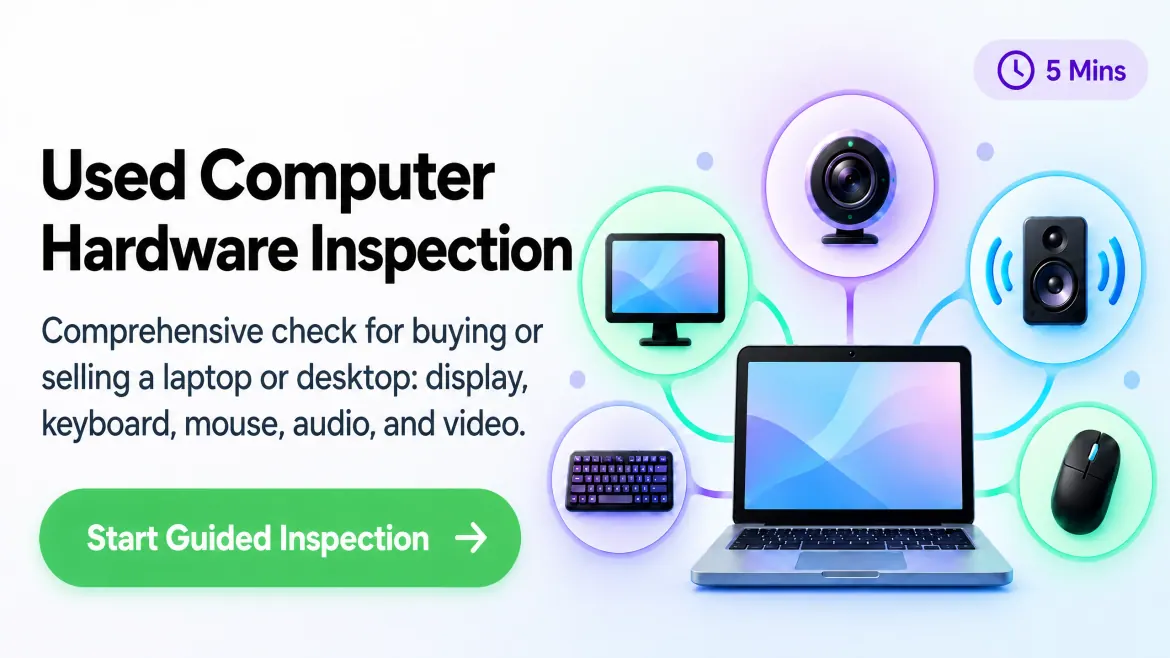
Used Computer Hardware Inspection (5 Mins)
Six checks for buying or selling a laptop or desktop: display, keyboard, mouse, speakers, microphone, and camera.
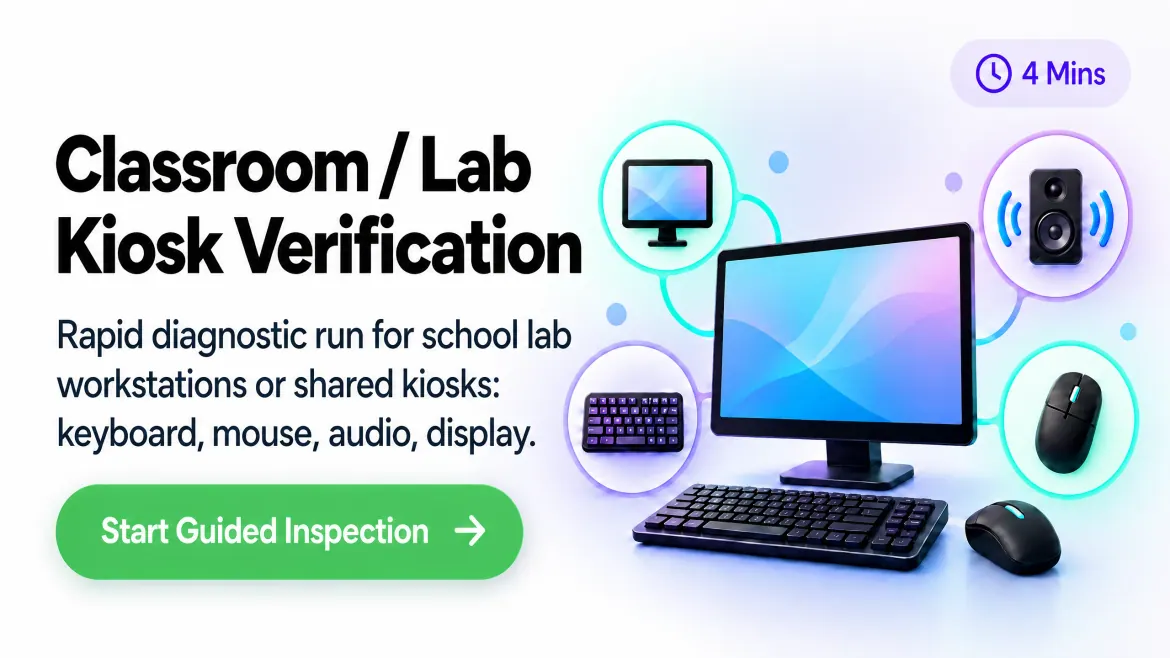
Classroom / Lab Kiosk Verification (4 Mins)
Rapid diagnostic run for school lab workstations or shared kiosks: keyboard, mouse, audio, display.
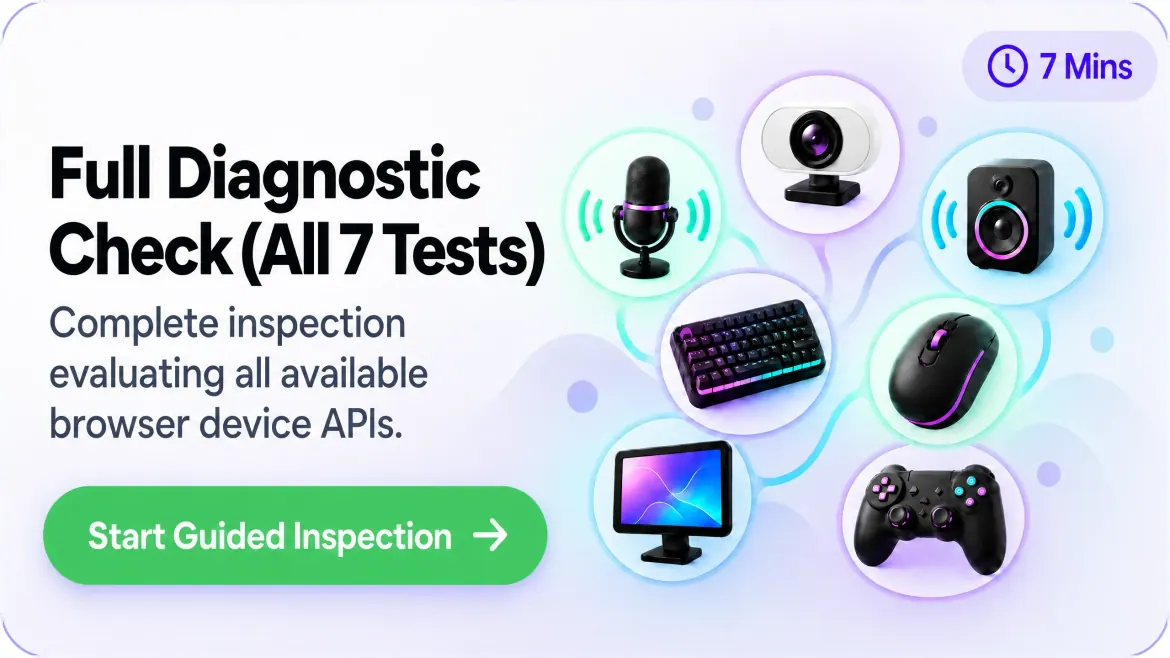
Full Diagnostic Check (All 7 Tests)
Runs every check in the inspection: microphone, camera, speakers, keyboard, mouse, display, and gamepad.
How it works
Three steps — no account, no installation.
- Step 1: Pick a toolChoose what you want to check — microphone, webcam, keyboard, screen, connection — from the grid above.
- Step 2: Interact and allowFollow the on-screen steps. Media tools ask for browser permission first; the signal is processed locally.
- Step 3: Understand the resultGet a plain-language verdict — passed, warning, failed, or inconclusive — with what the browser actually observed.
Private by design
Permissions are user-controlled. Media, keystrokes, and audio are processed locally in your browser and never uploaded — with two narrow, clearly labeled exceptions for the network tools.
- Local media processingMicrophone, camera, audio, and keystroke signals are analyzed in your browser memory — never streamed to our servers.
- User-controlled permissionsAccess happens only when you start a test and click “Allow” in your browser. You can revoke it any time in the address bar.
- Clear network exceptionsThe internet speed test and IP lookup connect to their measurement services when you start them. Everything else stays on your device.
Honest technical scope
DeviceTry measures browser-observable signals and reports their limits. Media and input checks run locally; the Internet Speed Test and IP lookup make network requests only after you start them.
Guides & Troubleshooting
Step-by-step fixes written around the free test that verifies the result — plus specification-based buying guides with no invented ratings.
Frequently Asked Questions
How do browser-based device tests work?
Modern browsers provide secure, standardized APIs (WebRTC getUserMedia, Web Audio, Gamepad API, KeyboardEvent, and more). DeviceTry queries these direct browser interfaces to measure live signals, verify permissions, and surface hardware issues — without installing desktop drivers or software.
Does DeviceTry record or store my video or audio streams?
No. Video feeds, microphone waveforms, keystrokes, and audio playback are processed in your local browser memory and are never streamed to our servers. Optional recordings you create (voice memos, snapshots) are processed locally and can be downloaded to your device — nothing is kept unless you save it yourself. Inspection history is stored in this browser’s local storage and never leaves your machine.
Why should I run tests before a Zoom, Google Meet, or Microsoft Teams call?
Most video-meeting problems come from blocked browser permissions, the wrong default microphone or camera, or unplugged devices. A quick three-minute check — microphone level, camera stream, and speaker channels — catches those before you join.
How many diagnostic tools are available on DeviceTry?
DeviceTry offers 15 core tests plus supporting diagnostics: microphone, webcam, speakers, voice recording, tones, keyboard, mouse, gamepad, touchscreen, click speed, reaction time, screen, refresh rate, internet speed, and IP lookup. A few advanced browser diagnostics are also linked from the relevant help sections.
My browser asked for permission and I clicked Block. What now?
Permissions can be changed at any time. Click the lock (or tune) icon at the left of the address bar, set Microphone or Camera access back to “Allow”, then reload the page. Each tool page also links to detailed permission help in case access was blocked at the operating-system level.
Do the testers work on phones and tablets, or only laptops?
Both. Every tester runs in any modern mobile browser — touchscreen coverage, multi-touch, microphone, webcam, and display tools included. A few need specific hardware: the keyboard and mouse testers need physical peripherals, and the internet speed test transfers real data when started.
What do the pass, warning, and failed results actually mean?
Passed means the browser observed a healthy, responsive signal from your hardware. Warning means the device works but shows a caveat — for example elevated latency or minor stick drift. Failed means the browser could not get a usable signal at all. Results are explained in plain language and can be included in a printable report.
Can I trust the results when buying or selling used hardware?
A structured pre-purchase check catches dead or stuck pixels, chattering mouse switches, unresponsive keyboard keys, and degraded microphone input before money changes hands. The guided inspection builds a single printable report you can attach to a marketplace listing or keep as a handover record.